 UK: 020 8146 3222
 info@imperialintelligence.co.uk
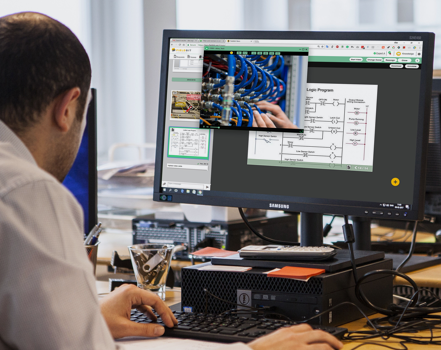
When something breaks on your PC, trying to describe the issue over a call can feel impossible. You say, “Click the settings icon,” the other person clicks the wrong thing, and ten minutes later you are both frustrated. That’s exactly why Windows remote assistance exists.
Windows remote assistance lets a trusted helper see your screen in real time and guide you through fixes. In many cases, you can also allow them to control your mouse and keyboard, but only with your approval. The result is faster troubleshooting, fewer misunderstandings, and far less time wasted guessing what is happening on the other side.
Most modern Windows users rely on Quick Assist because it is designed for simple, one-time help sessions. Some workplaces and older IT workflows still use Microsoft Remote Assistance (MSRA), which follows an invitation-style process and may require specific settings to be enabled. This guide explains both approaches, how to use them safely, and what to do when a connection fails.
Quick start: the fastest way to get help
If you want the quickest path to remote help on Windows 11 or Windows 10, Quick Assist is usually the best option. It works well for ad-hoc sessions because it starts with a short code and typically does not require you to change deeper system settings.
If someone specifically asks you to use “Remote Assistance” or “MSRA,” you may need to enable Remote Assistance in your settings first, and in some managed environments, you may not be able to change those settings without IT.
Most importantly, only use remote access tools with someone you trust. If a stranger asks for remote access, especially if they contacted you unexpectedly, end the conversation.
What is Windows Remote Assistance?
Windows remote assistance tools allow someone else to view your screen so they can guide you through steps, identify what you are seeing, and help diagnose what is wrong. Depending on the tool and the permissions you approve, you may also allow them to take control so they can perform actions directly while you watch.
This makes remote troubleshooting much faster because the helper sees the same messages, menus, and settings you see. Remote help can be useful for issues such as Wi-Fi connection problems, printer setup, Windows Update errors, software installation issues, confusing settings, permission prompts, and common browser or email problems.
The key feature is consent. You approve access, you can restrict it to view-only, and you can end the session at any time.
Windows Remote Assistance vs Quick Assist: which should you use?
Although both options can enable remote help, they are built for slightly different scenarios.
Quick Assist is designed for speed and simplicity. One person generates a time-limited code, the other person enters it, and the session begins. This makes it ideal for one-time sessions, helping a family member, or supporting a colleague quickly without changing multiple system settings.
Microsoft Remote Assistance, often referred to as MSRA, is a more traditional workflow that may involve creating and sending an invitation. It is commonly seen in older guidance or in organisations that still rely on established internal processes. Depending on device policies, Remote Assistance may need to be enabled first, and it can be blocked entirely on managed machines.
If you are unsure which to use, start with Quick Assist. If Quick Assist is restricted or your environment specifically requires MSRA, then follow the MSRA approach.
How to use Quick Assist on Windows 11/10
Quick Assist is intended to be approachable for non-technical users, so the steps are straightforward.
Start on the PC that needs help by opening the Start menu, typing “Quick Assist,” and opening the app. If you cannot find it, Quick Assist may not be installed on some setups or may be removed or restricted on managed devices. In those cases, it may be available through the Microsoft Store, but work devices sometimes block Store installations.
The helper then opens Quick Assist and chooses the option to help someone. They may need to sign in before generating a code. Quick Assist produces a short code that is valid for a limited time.
On the PC receiving help, you enter that code into Quick Assist and submit it. You will then be asked what level of access you want to allow. Typically, you can choose view-only or full control. If you are cautious, start with view-only and only approve control if it becomes necessary.
When the issue is resolved, end the session immediately by closing Quick Assist or selecting the option to end the connection. Remote sessions should not be left running “just in case.” Before starting any session, it is also a good idea to close private documents, password managers, banking tabs, or anything you do not want visible on screen.
How to enable and use Microsoft Remote Assistance (MSRA)
If you are using the “Remote Assistance” route, your PC may require Remote Assistance to be enabled first. Depending on your Windows version and organisation policies, the option may already be on, may be off by default, or may be controlled by IT.
The general flow involves enabling Remote Assistance connections in your system settings, then creating an invitation that the helper uses to connect. Invitations can be shared through a file or an email workflow, depending on configuration. Once the helper attempts to connect, you usually have to confirm the session.
As with Quick Assist, control is optional and should only be granted when needed. If MSRA feels complicated, fails to connect, or appears blocked, Quick Assist is usually the best fallback for one-time sessions.
Security: How to use Windows remote assistance safely
Remote help tools are genuinely useful, but they are also commonly abused in scams. A safe remote session should feel calm and transparent. You should understand what is happening, you should have control over permissions, and you should never feel pressured.
A major red flag is an unsolicited call or message claiming your computer is infected or “sending errors.” Another is being told to install unfamiliar software immediately, being pressured to pay, being asked for gift cards, or being told you must act right now or lose data. It is also unsafe if someone asks for your passwords, banking access, or one-time verification codes.
The safest approach is to only accept remote help from someone you personally trust, such as a family member, a colleague you know, or a verified IT contact. Stay at the computer during the session, never share passwords or one-time codes, start in view-only mode if you are unsure, and end the session immediately if anything looks suspicious. Treat remote access the way you would treat handing someone your unlocked phone: only do it when you are certain who they are.
Remote troubleshooting on Windows: common issues and practical fixes
Even when both people follow the steps correctly, remote sessions sometimes fail. Most problems fall into a few predictable categories.
If Quick Assist will not open or seems missing, try searching again from the Start menu, ensuring Windows is updated, or checking whether it can be installed from the Microsoft Store if your device allows it. If it is a work device, your organisation may restrict Quick Assist, and you may need IT support.
If a Quick Assist code does not work, it may have expired. Ask the helper to generate a fresh code and confirm you are entering the current one. Connection stability also matters, so confirm both devices have reliable internet. If needed, temporarily switching networks, such as using a mobile hotspot, can help determine whether the local network is blocking the connection.
If the helper can see your screen but cannot control the PC, the most common reason is that control permission was not approved. Some system prompts also require local confirmation for security reasons, so you may need to click “Yes” yourself on certain permission windows. On managed corporate devices, control can be restricted by policy even when viewing work.
If the session lags, freezes, or shows a black screen, reduce bandwidth usage by closing streaming or downloads, moving closer to your router, or use a wired connection, and restarting the session. If the PC itself is struggling, a restart can often restore stability before reconnecting.
If MSRA settings are missing or blocked, that often indicates corporate policy restrictions. In that situation, Quick Assist is the best alternative for interactive help sessions, or you may need to route the request through IT.
Best practices for smoother remote help sessions
Remote help works best when you set things up to reduce friction. Before you start, restarting the PC can eliminate issues caused by stuck processes. It helps to write down the exact error message, close unrelated apps, close private documents, and plug in laptops so the session does not end due to low battery.
During the session, explain the goal clearly, such as “printer won’t print,” “email won’t sync,” or “Windows update is stuck.” Let the helper make one change at a time so you can identify what worked. If they change something important, ask them to explain it briefly so the issue does not repeat.
After the session, end it completely. If anything was installed, confirm it is legitimate and necessary. It also helps to note what was changed, such as settings updates, drivers, or Windows Update actions, especially if the problem returns.
When you should not use Windows Remote Assistance
Remote assistance is excellent for many everyday issues, but it is not always appropriate. Avoid remote access if you are not confident the helper is trustworthy, if you are handling sensitive financial tasks and do not want screen visibility, if you are in a restricted corporate environment where policy forbids it, or if you need unattended access. Windows remote assistance tools are designed primarily for interactive sessions where you are present and approving access.
FAQ: Quick Assist and MSRA
Windows Remote Assistance is not the same as Remote Desktop. Remote Desktop is typically used to sign into a computer remotely, often for IT administration or workplace access. Windows remote assistance tools are designed for help sessions where the user is present and explicitly approves access.
For most users on Windows 11, Quick Assist is the easiest way to get remote help. It uses a short code, works well for one-time support, and is relatively simple to start and stop.
If you used Quick Assist once and ended the session, it should not allow later access. The session is temporary, which is why ending it promptly matters.
Allowing control can be safe when the helper is trusted, and you stay present, but it is not safe for unsolicited calls or strangers. Some permission prompts cannot be clicked remotely due to Windows security protections, so you may need to approve them locally.
If you are choosing between Quick Assist and MSRA, Quick Assist is usually the better default for fast sessions, while MSRA may still appear in older workflows or certain environments.
Ready to Get Started?
Let’s simplify your workload.
Request a free sample or a custom quote today - and see the Imperial difference for yourself.
Partner with us to unlock efficiency and growth
Related Services:
 Remote Executive Assistant (UK) – High-Level Virtual EA Support for Busy Leaders
 Executive Assistant Remote Services
 Remote Virtual Assistant (UK) – Secure, Professional Support That Scales With You
 Remote Administrative Assistant (UK) – Reliable Remote Admin Support That Saves You Hours Every Week
 Remote Assistance: The Essential Guide for IT Managers, CEOs, and MSPs
 Microsoft Remote Assistance Support
 Remote Medical Assistant Services
 Remote Admin Assistant Services
 Top 5 Tasks You’re Wasting Time On-That a Skilled Remote Assistant Can Handle
 Best Transcription Services
 Police Interview Transcription Services
 Home Assistant Remote Access

